目标
实现小球在指定高度下以自由落体(g=9.8m/s²)下落,与’地面’碰撞后根据一定义的反弹系数进行反弹以及滚动,有一定的摩擦系数。
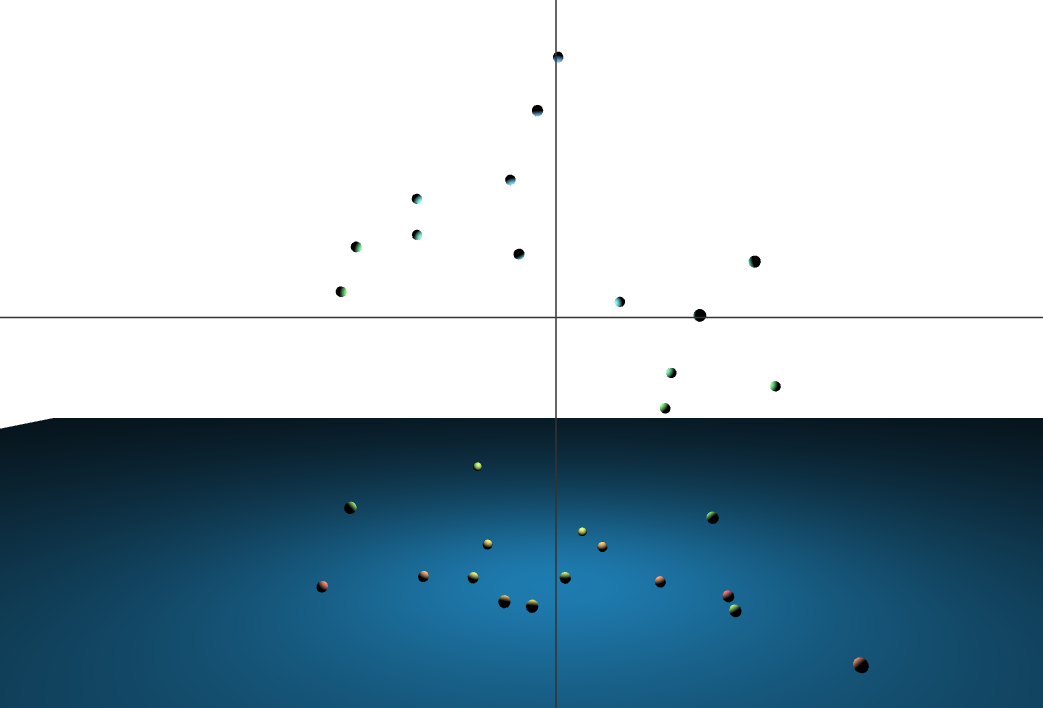
实现思路
增加物理力学包cannon.js
由于treeJs没有引力摩擦力等物理作用力相关的实现,因此需要额外引入CANNON.js物理力学世界。相关库可自行下载或使用CDN引入,建议初学者使用静态导入快速上手。
<script src="../cannon/cannon.min.js"></script>实现单个小球的自由落体
开始
1.准备基础容器
<!DOCTYPE html>
<html lang="en">
<head>
  <meta charset="UTF-8">
  <meta name="viewport" content="width=device-width, initial-scale=1.0">
  <title>3D重力小球</title>
</head>
  <body>
    <div id="controls" style="background-color: transparent;"></div>
    <script src="../cannon/cannon.min.js"></script>
    <script src="../three.min.js"></script>
    <script src="../common.js"></script>
  </body>
</html>
2.初始化渲染器
    const renderer = new THREE.WebGLRenderer({antialias: true});
    renderer.setSize(window.innerWidth, window.innerHeight); // 设置渲染器宽高
3.渲染器绑定画布
    const canvas = document.getElementById('controls');
    canvas.appendChild(renderer.domElement);
4.创建相机
    const fov = 60;
    const aspect = window.innerWidth / window.innerHeight;
    const near = 1;
    const far = 1000;
    const camera = new THREE.PerspectiveCamera(fov, aspect, near, far);
    camera.position.x = 0
    camera.position.y = 100
    camera.position.z = 300
5.创建场景
    const scene = new THREE.Scene();
    scene.background = new THREE.Color('#ffffff');
6.创建物理力学世界
    // 创建 Cannon.js 物理世界
    const world = new CANNON.World();
    world.gravity.set(0, -9.82, 0); // 设置重力

    // 创建物理材质
    const ballMaterial = new CANNON.Material(); // 小球材质
    const groundMaterial = new CANNON.Material(); // 地面材质

    // 创建接触材质,设置反弹系数
    const ballAndGround = new CANNON.ContactMaterial(ballMaterial, groundMaterial, {
        restitution: 0.5, // 反弹系数(0~1,1为完全弹性)
        friction: 0.9,    // 摩擦系数
    });
    world.addContactMaterial(ballAndGround);

    const ballAndBall = new CANNON.ContactMaterial(ballMaterial, ballMaterial, {
        restitution: 0.8, // 反弹系数(0~1,1为完全弹性)
        friction: 0.9,    // 摩擦系数
    });
    world.addContactMaterial(ballAndBall);

    // 创建地面刚体
    const groundShape = new CANNON.Plane(1000, 1000);
    const groundBody = new CANNON.Body({
        mass: 0, // 静态物体质量为 0
        shape: groundShape,
        material: groundMaterial, // 应用地面材质
    });
    groundBody.quaternion.setFromEuler(-Math.PI / 2, 0, 0); // 旋转为水平面
    world.addBody(groundBody);
7.创建小球刚体
创建小球刚体与小球几何体,其中小球刚体的大小是与小球几何体大小一致,这决定了小球的受力边界。
创建小球后,将其放在集合内,在后续逐帧动画时需要更改运动状态。
    const ballCollect = [];
    let num = 50;
    for (let i = 0; i < num; i++) {
        // 创建小球刚体
        const sphereShape = new CANNON.Sphere(2); // 半径为 1 的球体
        const sphereBody = new CANNON.Body({
            mass: 2, // 质量
            shape: sphereShape,
            material: ballMaterial, // 应用小球材质
        });
        sphereBody.velocity.set(
            (Math.random() - 0.5) * 0.1, // 随机X方向初速度
            0,                            // Y方向初速度
            (Math.random() - 0.5) * 0.1  // 随机Z方向初速度
        );

        sphereBody.position.set(0, i+5, 0); // 设置初始位置
        world.addBody(sphereBody);

        // 创建小球网格
        const sphereGeometry = new THREE.SphereGeometry(2, 32, 32);

        const sphereMaterial = new THREE.MeshStandardMaterial({ color: '#83b900' });
        const u = i / num;
        sphereMaterial.color.setHSL(u, 1, .75);

        const sphereMesh = new THREE.Mesh(sphereGeometry, sphereMaterial);
        scene.add(sphereMesh);

        ballCollect.push({sphereBody, sphereMesh})
    }
8.创建地面网格
    const groundGeometry = new THREE.PlaneGeometry(1000, 1000);
    const groundMaterialThree = new THREE.MeshStandardMaterial({ color: '#1a77ab', side: THREE.DoubleSide });
    const groundMesh = new THREE.Mesh(groundGeometry, groundMaterialThree);
    groundMesh.rotation.x = -Math.PI / 2; // 旋转为水平面
    scene.add(groundMesh);
9.添加光源
    const light = new THREE.PointLight(0xffffff, 1);
    light.position.set(0, 100, 0);
    scene.add(light);
10.逐帧动画
在动画更新过程中,需要将小球与物理世界的状态特性进行同步。
    // 动画循环
    function animate() {

        requestAnimationFrame(animate);

        // 更新物理世界
        world.step(1 / 30 ); // 固定时间步长 1/60 秒

        ballCollect.forEach((ball, index)=>{
            const {sphereBody, sphereMesh} = ball
            // 同步小球的位置和旋转
            sphereMesh.position.copy(sphereBody.position);
            sphereMesh.quaternion.copy(sphereBody.quaternion);
        })

        // 渲染场景
        renderer.render(scene, camera);
    }

    animate();
11.添加交互
    addMouseDragging(renderer, scene)
    addMouseWheel(renderer, camera)
实现样例
本文代码
<!DOCTYPE html>
<html lang="en">
<head>
    <meta charset="UTF-8">
    <meta name="viewport" content="width=device-width, initial-scale=1.0">
    <title>3D小球</title>
</head>
<body>
<div id="controls" style="background-color: transparent;"></div>
<script src="../cannon/cannon.min.js"></script>
<script src="../three.min.js"></script>
<script src="../common.js"></script>
<script>

    const canvas = document.getElementById('controls');

    const renderer = new THREE.WebGLRenderer({antialias: true});
    renderer.setSize(window.innerWidth, window.innerHeight); // 设置渲染器宽高

    canvas.appendChild(renderer.domElement);

    const fov = 60;
    const aspect = window.innerWidth / window.innerHeight; // the canvas default
    const near = 1;
    const far = 1000;
    const camera = new THREE.PerspectiveCamera(fov, aspect, near, far);
    camera.position.x = 0
    camera.position.y = 100
    camera.position.z = 300

    const scene = new THREE.Scene();
    scene.background = new THREE.Color('#ffffff');

    const helper = new THREE.CameraHelper(camera);
    scene.add(helper);


    // 创建 Cannon.js 物理世界
    const world = new CANNON.World();
    world.gravity.set(0, -9.82, 0); // 设置重力

    // 创建物理材质
    const ballMaterial = new CANNON.Material(); // 小球材质
    const groundMaterial = new CANNON.Material(); // 地面材质

    // 创建接触材质,设置反弹系数
    const ballAndGround = new CANNON.ContactMaterial(ballMaterial, groundMaterial, {
        restitution: 0.5, // 反弹系数(0~1,1为完全弹性)
        friction: 0.9,    // 摩擦系数
    });
    world.addContactMaterial(ballAndGround);

    const ballAndBall = new CANNON.ContactMaterial(ballMaterial, ballMaterial, {
        restitution: 0.8, // 反弹系数(0~1,1为完全弹性)
        friction: 0.9,    // 摩擦系数
    });
    world.addContactMaterial(ballAndBall);

    // 创建地面刚体
    const groundShape = new CANNON.Plane(1000, 1000);
    const groundBody = new CANNON.Body({
        mass: 0, // 静态物体质量为 0
        shape: groundShape,
        material: groundMaterial, // 应用地面材质
    });
    groundBody.quaternion.setFromEuler(-Math.PI / 2, 0, 0); // 旋转为水平面
    world.addBody(groundBody);

    // 提高模拟精度
    // world.solver.iterations = 20;
    // world.solver.tolerance = 0.001;


    const ballCollect = [];

    let num = 50;
    for (let i = 0; i < num; i++) {
        // 创建小球刚体
        const sphereShape = new CANNON.Sphere(2); // 半径为 1 的球体
        const sphereBody = new CANNON.Body({
            mass: 2, // 质量
            shape: sphereShape,
            material: ballMaterial, // 应用小球材质
        });
        // sphereBody.position.set(
        //     i * 2 - 2 + (Math.random() - 0.5) * 0.1, // 限制初始位置偏移
        //     5 + i,
        //     (Math.random() - 0.5) * 0.1
        // );
        sphereBody.velocity.set(
            (Math.random() - 0.5) * 0.1, // 随机X方向初速度
            0,                            // Y方向初速度
            (Math.random() - 0.5) * 0.1  // 随机Z方向初速度
        );
        // sphereBody.angularVelocity.set(0, 0, 0); // 置空初始角速度
        sphereBody.position.set(0, i+5, 0); // 设置初始位置
        world.addBody(sphereBody);

        // 创建小球网格
        const sphereGeometry = new THREE.SphereGeometry(2, 32, 32);

        const sphereMaterial = new THREE.MeshStandardMaterial({ color: '#83b900' });
        const u = i / num;
        sphereMaterial.color.setHSL(u, 1, .75);

        const sphereMesh = new THREE.Mesh(sphereGeometry, sphereMaterial);
        scene.add(sphereMesh);

        ballCollect.push({sphereBody, sphereMesh})
    }

    // 创建地面网格
    const groundGeometry = new THREE.PlaneGeometry(1000, 1000);
    const groundMaterialThree = new THREE.MeshStandardMaterial({ color: '#1a77ab', side: THREE.DoubleSide });
    const groundMesh = new THREE.Mesh(groundGeometry, groundMaterialThree);
    groundMesh.rotation.x = -Math.PI / 2; // 旋转为水平面
    scene.add(groundMesh);

    // 添加光源
    const light = new THREE.PointLight(0xffffff, 1);
    light.position.set(0, 100, 0);
    scene.add(light);

    // 动画循环
    function animate() {

        requestAnimationFrame(animate);

        // 更新物理世界
        world.step(1 / 30 ); // 固定时间步长 1/60 秒

        ballCollect.forEach((ball, index)=>{
            const {sphereBody, sphereMesh} = ball
            // 同步小球的位置和旋转
            sphereMesh.position.copy(sphereBody.position);
            sphereMesh.quaternion.copy(sphereBody.quaternion);
        })

        // 渲染场景
        renderer.render(scene, camera);
    }

    animate();


    // 添加交互
    addMouseDragging(renderer, scene)
    addMouseWheel(renderer, camera)

</script>
</body>
</html>
作者:yuanfun 创建时间:2024-12-30 09:02
最后编辑:yuanfun 更新时间:2025-01-14 17:00
最后编辑:yuanfun 更新时间:2025-01-14 17:00